Cut-file listings usually say "SVG, DXF, PDF, AI, EPS" and leave you to guess which one to open. The format matters: the wrong one can import at the wrong size, lose its colors or turn your cut lines into a picture the machine cannot follow. Here is what each format is for.
Vector vs raster: the one thing to understand
A vector file stores lines and curves as math: "a circle of 50 mm here". A laser or router can follow those paths exactly, at any size. SVG, DXF, PDF, AI and EPS are vector formats (PDF and SVG can also contain pictures).
A raster file (PNG, JPG, BMP) is a grid of pixels. A laser can engrave a raster image, line by line, but it cannot cut along it. If your cut file is a picture, it must be traced into vectors first.
SVG: the default for lasers
SVG (Scalable Vector Graphics) is the most common laser format.
- Opens in: Glowforge, xTool Creative Space, LightBurn, Inkscape, Illustrator, Affinity Designer, Cricut Design Space and Silhouette Studio (some editions).
- Keeps: colors, layers or groups, fills and strokes, which is how most laser programs separate cut, score and engrave.
- Watch out for: size. Programs disagree on how many pixels make an inch: Inkscape and most modern tools use 96, old Illustrator files use 72. A file without real units can import at 75% or 133% of its size. A well-made SVG states its width and height in millimeters or inches.
Use SVG when: you have a diode or CO2 laser, or a blade cutter, and the file uses colors for different operations.
DXF: the CAD and CNC standard
DXF (Drawing Exchange Format) comes from AutoCAD and is the common language of CAD and CAM.
- Opens in: LightBurn, RDWorks, CNC router CAM software (Easel, Carbide Create, VCarve, Fusion), plasma and waterjet software, LibreCAD, FreeCAD.
- Keeps: precise geometry and layers. Colors and fills often do not survive the trip.
- Watch out for: units. Many DXF files do not say whether they are in millimeters or inches. A part drawn in inches and read as millimeters comes out 25.4 times too small. Check one dimension after import.
Use DXF when: you run a CNC router, plasma cutter or industrial laser, or your software prefers CAD files.
PDF: the safe fallback
A PDF made from a vector program keeps its vectors and, unlike SVG, it has a fixed page size, so scaling surprises are rare. Many laser programs and Illustrator import it directly. It is a good backup when an SVG imports at the wrong size.
AI and EPS
AI (Adobe Illustrator) and EPS are for people who edit in Illustrator. They work, but most laser software reads SVG or PDF more reliably. CDR is only useful if you design in CorelDRAW.
Native project files
LightBurn (.lbrn2), Glowforge and xTool projects store cut settings as well as shapes. They are convenient for one machine, but settings never transfer perfectly between machines, so you still need to test.
Color conventions
There is no single standard, but the most common is: red = cut, blue = engrave, black or green = score. Pure colors (for example 255, 0, 0 for red) import more cleanly than "nearly red". Whatever the file uses, look for a legend in the instructions and check the layer list before you press start.
Checklist for a clean cut file
- Real units: width and height in mm or inches, matching what the instructions say.
- Closed paths for every cut shape.
- No duplicate lines: overlapping paths cut twice and scorch the edge.
- Text converted to paths, so it does not change font on another computer.
- One color per operation, with a legend.
- Parts that fit your bed, with a small margin.
- Thickness and kerf stated for joints (see how to measure laser kerf).
Which one should you pick?
- Glowforge, xTool, diode lasers: SVG first, PDF if the size is wrong.
- LightBurn: SVG or DXF, both work well.
- CNC router: DXF or SVG into your CAM program.
- Blade cutters: SVG, or PNG for print-then-cut designs.
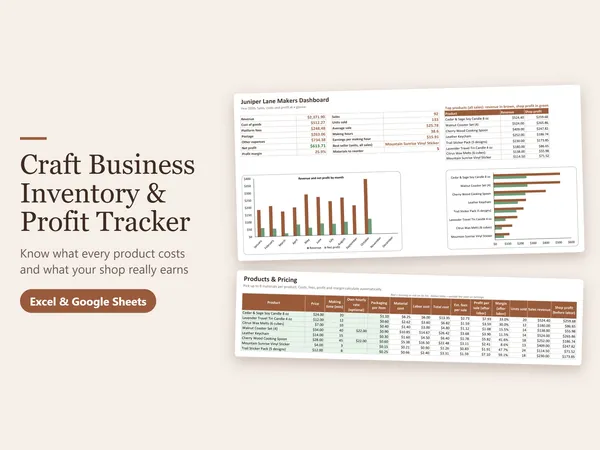
If you sell what you cut, keep track of what each product costs in material and machine time. Our Craft Business Inventory & Profit Tracker calculates cost, fees and profit per item in Excel and Google Sheets.